

Key Takeaways
- Each permission grants access to a specific resource - location is different from contacts, which is different from the microphone.
- You can review and revoke most permissions at any time through your phone's settings without uninstalling the app.
- Permissions that seem unrelated to an app's core function deserve extra scrutiny before you tap Allow.
- Both iOS and Android now offer granular controls, such as sharing approximate location instead of precise location.
- A one-time or 'while using the app' setting is often safer than granting permanent background access.
App Permissions
App permissions are explicit authorizations you grant to a smartphone application, allowing it to access specific features or data on your device - such as your camera, location, contacts, or microphone. Every permission you accept extends the app's reach beyond its own sandbox and into your personal data or hardware. Denying a permission restricts what the app can see or do, though some apps may not function without certain access.
On both iOS and Android, permissions are governed by the operating system's permission framework, which sandboxes apps and requires explicit user consent before granting access to sensitive APIs (application programming interfaces).
What Permissions Actually Control
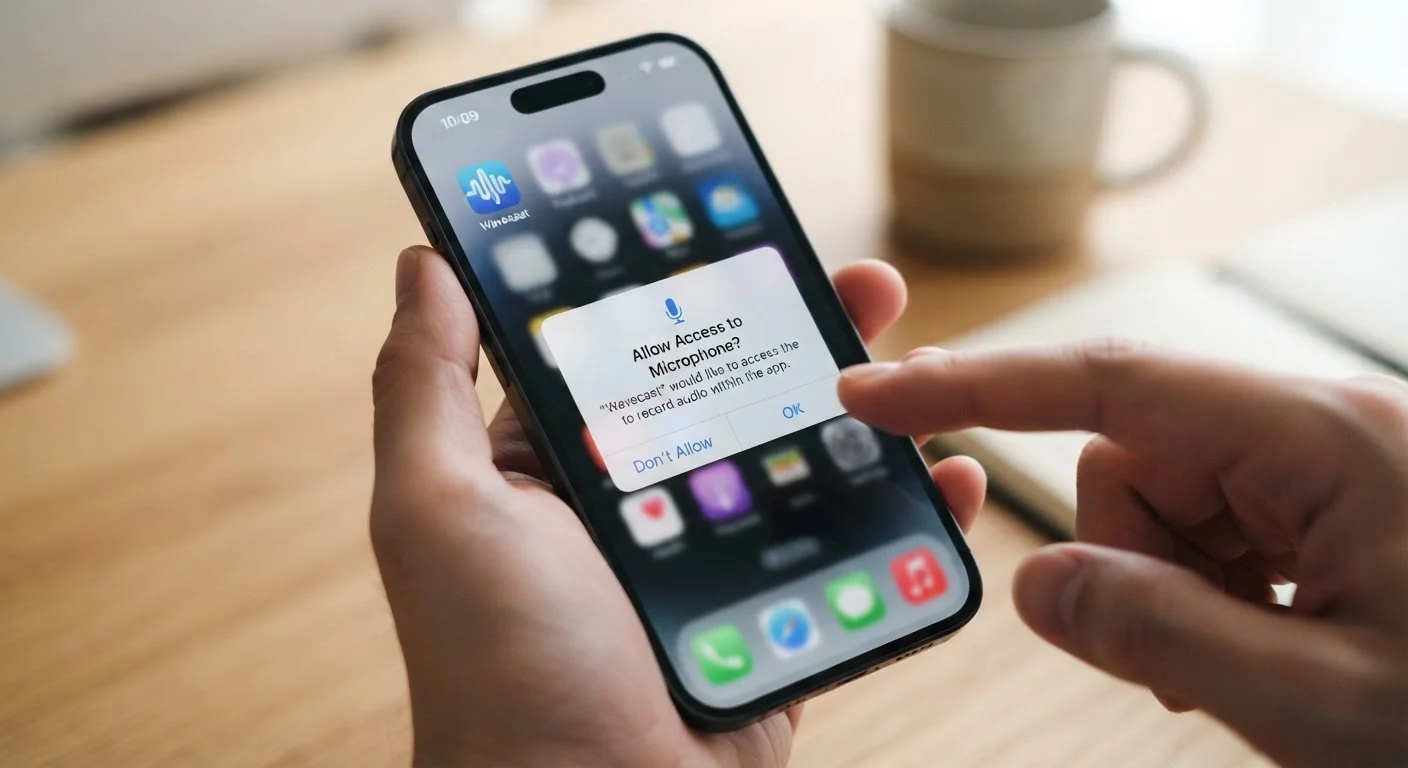
When an app pops up a dialog asking to access your camera or location, it's making a formal request through your operating system. Your phone acts as a gatekeeper: the app cannot touch that resource until you say yes. Understanding what each category of permission actually unlocks helps you make that decision with open eyes.
- Location: Allows the app to read your physical position using GPS, Wi-Fi signals, or cell towers. Precise location pinpoints you to within a few meters; approximate location gives a broader area.
- Camera: Grants the ability to activate your phone's camera hardware and capture photos or video.
- Microphone: Lets the app listen through your phone's mic - used legitimately for voice calls, voice search, or audio recording features.
- Contacts: Opens your full address book, including names, phone numbers, email addresses, and any notes you've stored.
- Storage/Photos: Allows reading or writing files on your device, including your photo library.
- Notifications: Permits the app to send alerts to your lock screen and notification tray.
- Bluetooth/Nearby Devices: Enables connection to nearby Bluetooth accessories - but can also be used to detect your proximity to physical locations.
Permissions don't grant unlimited access. A camera permission lets the app use the camera; it doesn't hand over your entire photo library unless a separate storage or photos permission is also granted.
Permissions Don't Control What Happens to Data After Collection
Granting a permission authorizes the app to access a resource on your device. It does not control what the developer does with that data once collected - whether it's stored, shared with advertisers, or sold to third parties. Those practices are governed by the app's privacy policy, not the permission dialog. Reading the privacy label in the App Store or Google Play before installing gives you a summary of data practices without requiring you to parse a full legal document.
The Privacy Risk Hidden in Routine Taps
The real risk with permissions isn't a single dramatic breach - it's the cumulative effect of granting access without reflection. Most people tap Allow because the dialog interrupts what they were trying to do, and the instinct is to get past it quickly.
A navigation app requesting location makes obvious sense. A recipe app requesting your contacts does not. That mismatch - a permission that doesn't match the app's core purpose - is the signal worth pausing on. Contacts data is particularly sensitive because it exposes information about other people who never agreed to share their details.
89%
Of apps request at least one sensitive permission
According to research by Pew Research Center on mobile app use and privacy, the vast majority of smartphone apps request access to at least one category of sensitive data.
45%
Of users rarely review app permissions
A Pew Research Center survey found that a significant share of smartphone users seldom or never review the permissions granted to apps already installed on their devices.
Background access amplifies this concern. An app with 'Always On' location access can log your movements continuously, building a detailed picture of your routines, workplaces, and visited locations over time - even when you haven't opened the app in weeks.
Just as reading the fine print on agreements matters in other contexts - see our guide to ISP contracts for how this applies to internet service - understanding what you're agreeing to with app permissions deserves the same deliberate attention. Similarly, when evaluating a wireless plan, scrutinizing the details protects you from unwanted surprises.
How to Audit and Adjust Your App Permissions
Both major mobile platforms make it straightforward to review what you've already allowed. You don't have to start from scratch or uninstall anything.
On iPhone (iOS)
- Open Settings and scroll down to find the specific app, or go to Settings > Privacy & Security to view permissions by category (e.g., see every app with microphone access at once).
- Tap any permission to change it to Never, Ask Next Time, or While Using the App.
On Android
- Go to Settings > Privacy > Permission Manager to browse by permission type, or open Settings > Apps, select an app, and tap Permissions.
- Toggle individual permissions off, or change location from All the time to Only while using the app.
A useful habit: after installing any new app, check its permissions before using it for the first time. If something seems out of place, deny it and see whether the app's main function still works. Most of the time, it will.
For a broader look at protecting your digital accounts beyond just apps, our article on setting up two-factor authentication covers another practical layer of security worth adding.
Do a Permissions Audit Every Few Months
Apps you installed and forgot about may still hold active permissions to your location, microphone, or contacts. Set a reminder to review your full permissions list in Settings a few times a year - especially after a major OS update, which sometimes resets or re-prompts certain permissions. Removing access from dormant apps is one of the simplest privacy improvements you can make.
Evaluating Permission Requests Going Forward
When a new permission request appears, a few quick questions help you decide whether to grant it:
- Does this match the app's purpose? A photo editing app needs camera and photos access. It probably doesn't need your contacts.
- Is background access necessary? Unless you genuinely need an app to track your location while it's closed - a running tracker, for example - choose 'While Using' over 'Always.'
- Can you try denying it first? Many apps ask for permissions preemptively. Denying and testing is a low-risk way to find out if the access is truly required.
- What does the privacy policy say? App stores now display privacy nutrition labels summarizing what data apps collect and whether it's linked to your identity. These aren't perfect, but they're a useful starting point.
Thinking about choosing a smartphone? Privacy controls and permission management are worth considering alongside hardware specs - different operating systems handle permission granularity differently.
Permissions aren't inherently suspicious. Apps need legitimate access to function well. The goal isn't to deny everything - it's to make deliberate choices rather than reflexive ones, so that what you share with an app is genuinely what you intend to share.